

PrimeFacesを止めたらダイアログボックスがないので自作した話
はじめに
『PrimeFaces』を利用しない(していない)経緯については『PrimeFacesについて』を参照してください。 さて、PrimeFacesを利用しない事で困る事とは何でしょう。
それは『ダイアログボックス』です! Jakartaフレームワークでは、標準でダイアログボックスはありません。
これまで全て『PrimeFaces』の恩恵を享受していたのです。 それでもダイアログボックスを使用したい場合は、自作するしかありません! しかし、流石に自作はハードルが高いですよね。
そんな時に役に立つのが『jQuery UI Dialog』です。 これは、10年以上前からWeb開発で使われ続けている非常に有名なライブラリです。 今回の話は『jQuery UI Dialog』を『Jakarta Faces』に組込む内容となります。
ベースとなる画面を作成
上記サイトへアクセスし『Download』タブを選択します。 [Components] > [Toggle All]のチェックを外し、画面全てのチェックをクリアします。
[Widgets]グループ内の「Dialog」にチェックを入れます。 すると依存関係のある機能のチェックボックスも自動的に有効になります。
画面最下段の『Download』を押下します。 公開時点では『jquery-ui-1.13.3.custom.zip』がダウンロードできました。 このZIPファイルを解凍します。
今回はミニマムでダイアログを実装したいので、解凍した以下のファイルをフレームワーク指定のディレクトリに移動します。
・/jakaruta-pj/src/main/webapp/resources/js/jquery.js
・/jakaruta-pj/src/main/webapp/resources/css/jquery-ui.min.css
<!DOCTYPE html>
<html xmlns="http://www.w3.org/1999/xhtml"
xmlns:h="jakarta.faces.html"
xmlns:f="jakarta.faces.core"
xmlns:p="jakarta.faces.passthrough">
<f:metadata>
<f:event type="preRenderView" listener="#{sampleBean.init}" />
</f:metadata>
<h:head>
<title>Hello World</title>
<h:outputStylesheet library="css" name="style.css" />
</h:head>
<h:body>
<h1>おはよう世界!</h1>
<h:form id="index_form" prependId="false" addToken="false">
<h:inputText type='hidden' id='checkToken' name='checkToken' value='#{sessionScope.CHECK_TOKEN}' />
<h:messages id="msg" errorClass="alert-danger" warnClass="alert-warning" infoClass="alert-info" layout="list" />
<h:selectOneMenu id="my_pref" value="#{sampleBean.dto.pref}" styleClass="parts_combo" style="width:150px;">
<f:ajax execute="@this" render="checkToken msg jyusyo" listener="#{sampleBean.changeCombo()}" resetValues="true" />
<f:selectItem itemValue=" " itemLabel="-- 都道府県選択 --" />
<f:selectItem itemValue="1" itemLabel="〒 150-0047" />
<f:selectItem itemValue="2" itemLabel="〒 332-0031" />
<f:selectItem itemValue="3" itemLabel="〒 227-0062" />
<f:selectItem itemValue="4" itemLabel="〒 277-0841" />
</h:selectOneMenu>
<h:inputText id="jyusyo" value="#{sampleBean.dto.jyusyo}" style="width:150px;height:25px;" disabled="true" />
<BR />
<h:inputText id="inpText" value="#{sampleBean.dto.name}" style="width:300px;height:25px;"
styleClass="#{not empty facesContext.getMessageList('inpText') ? 'parts_text_err' : 'parts_text'}" />
<BR />
<h:inputText id="inpMemo" value="#{sampleBean.dto.memo}" style="width:300px;height:25px;"
styleClass="#{not empty facesContext.getMessageList('inpMemo') ? 'parts_text_err' : 'parts_text'}" />
<BR />
<h:commandButton value="次画面へ" action="#{sampleBean.next()}" />
<BR />
</h:form>
</h:body>
</html>
※『各種UIが参照する「静的ファイル」』参照
各種UIのデザインをまとめたソースとなります。package dto;
import lombok.Data;
@Data
public class SampleDto {
private String name = "";
private String memo = "";
private String pref = "";
private String jyusyo = "";
}
package view;
import java.io.Serializable;
import java.util.Map;
import java.util.UUID;
import jakarta.faces.context.ExternalContext;
import jakarta.faces.context.FacesContext;
import annotation.UserAgentChecked;
public abstract class BaseBean implements Serializable {
private static final long serialVersionUID = 1L;
protected boolean isFirstTiem = false;
protected static final String SELF = null;
@UserAgentChecked
public void init() {
if (isFirstTiem) {
return;
}
this.updateCHECK_TOKEN();
// 子がオーバーライドする
initialize();
// ライフサイクル中は初期化しない
isFirstTiem = true;
}
// 子の初期化メソッド定義
protected abstract void initialize();
public boolean isFirstTiem() {
return isFirstTiem;
}
// 不正遷移チェックトークン値を更新
public void updateCHECK_TOKEN() {
FacesContext facesContext = FacesContext.getCurrentInstance();
ExternalContext externalContext = facesContext.getExternalContext();
Map<String, Object> sessionMap = externalContext.getSessionMap();
sessionMap.put("CHECK_TOKEN", UUID.randomUUID().toString());
}
}
コンストラクタの仕組みを目的に作成したクラスとなります。
詳細は『こちら』を参照してください。
package view;
import java.util.Map;
import jakarta.faces.view.ViewScoped;
import jakarta.inject.Named;
import dto.SampleDto;
import lombok.Getter;
@Named
@ViewScoped
public class SampleBean extends BaseBean {
private static final long serialVersionUID = 1L;
@Getter
private SampleDto dto;
@Override
protected void initialize() {
dto = new SampleDto();
}
public String next() {
this.updateCHECK_TOKEN();
return "next";
}
public void changeCombo() {
this.updateCHECK_TOKEN();
switch(dto.getPref()) {
case "1":
dto.setJyusyo("東京都渋谷区");
break;
case "2":
dto.setJyusyo("埼玉県川口市");
break;
case "3":
dto.setJyusyo("神奈川県横浜市");
break;
case "4":
dto.setJyusyo("千葉県柏市");
break;
default:
dto.setJyusyo("");
}
}
}
※『トークンタグの自動付与(ヘルパー)』参照
ビュー側と同様に『不正遷移対策』をしている場合、AJAX処理の設定内容次第では『不正遷移扱い』となります。本コードは正常にトークンチェック値をビュー側へ渡すための設定となっています。 従って本サイトによる『不正遷移対策』を実装していない場合は、特に記述の必要はありません。
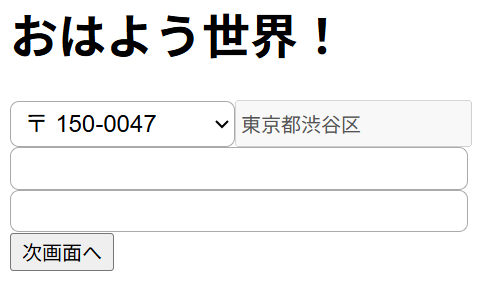 プルダウンを選択すると、AJAXにより隣のグレーの枠に住所が表示されます。
※イメージとしてはアカウント申し込みフォームです 下段の2つのテキストボックスは、現状何もしていないです。
『次画面へ』を押下すると任意の画面へ遷移します。
※次画面は適当に準備して下さい
バリデーションの追加
Jakartaには『ビーンバリデーション』『カスタムバリデーション』があるので、上段・下段のテキストボックスに仕込みます。
package dto;
import jakarta.validation.constraints.NotBlank;
import lombok.Data;
@Data
public class SampleDto {
@NotBlank(message = "名前は必須入力です")
private String name = "";
private String memo = "";
private String pref = "";
private String jyusyo = "";
}
package view;
import jakarta.faces.view.ViewScoped;
import jakarta.inject.Named;
import dto.SampleDto;
import lombok.Getter;
import java.io.Serializable;
import java.util.ArrayList;
import java.util.List;
import jakarta.faces.application.FacesMessage;
import jakarta.faces.context.FacesContext;
@Named
@ViewScoped
public class SampleBean extends BaseBean {
private static final long serialVersionUID = 1L;
@Getter
private SampleDto dto;
@Override
protected void initialize() {
dto = new SampleDto();
}
public String next() {
this.updateCHECK_TOKEN();
// カスタムバリデーション
if (dto.getMemo().isEmpty()) {
List<ValidationError> errors = new ArrayList<>();
FacesMessage msg = new FacesMessage(FacesMessage.SEVERITY_ERROR, "メモは必須です。", null);
errors.add(new ValidationError("inpMemo", msg));
this.addMessage(errors);
return null;
}
return "next";
}
public void changeCombo() {
this.updateCHECK_TOKEN();
switch(dto.getPref()) {
case "1":
dto.setJyusyo("東京都渋谷区");
break;
case "2":
dto.setJyusyo("埼玉県川口市");
break;
case "3":
dto.setJyusyo("神奈川県横浜市");
break;
case "4":
dto.setJyusyo("千葉県柏市");
break;
default:
dto.setJyusyo("");
}
}
// カスタムバリデーション用
public record ValidationError(String targetId, FacesMessage facesMessage) implements Serializable {}
// エラーメッセージを「FacesContext」にすべて追加する
protected void addMessage(List<ValidationError> errors) {
FacesContext context = FacesContext.getCurrentInstance();
for (ValidationError error : errors) {
// 第1引数 = 各項目UIのID属性名
context.addMessage(error.targetId(), error.facesMessage());
}
}
}
これで2つのテキストボックスは『必須項目』となり、ブランクの状態で『次画面へ』を押下すると怒られます。
次の章からは本格的に『ダイアログボックス』の実装方法を解説します。 また、今後のサンプルソースでは『不正遷移用コード』は非表示とし『ダイアログボックス』の実装コードにフォーカスします。
ボタン押下でダイアログボックスを表示する
まずは冒頭にダウンロードした『jQuery UI Dialog』の3ファイルの読み込み設定をします。
<h:head>
<title>Hello World</title>
<h:outputStylesheet library="css" name="style.css" />
<h:outputStylesheet library="css" name="jquery-ui.min.css" />
<h:outputScript library="js" name="jquery.js" />
<h:outputScript library="js" name="jquery-ui.min.js" />
<script>
</script>
</h:head>
次に『ダイアログボックス』表示のための領域を定義します。
<!-- ダイアログ制御隠し項目 -->
<h:inputHidden id="dialogCtrl" value="#{sampleBean.dialog.dialogJson}" />
<!-- ダイアログ「はい」押下時の発火ボタン -->
<h:commandButton id="dialogAction" value="" action="#{sampleBean.dialogReturn()}" style="display:none;" />
<!-- ダイアログとして表示する HTML エリア(title 属性がヘッダー文字列になります) -->
<div id="customDialog" title="確認ダイアログ" style="display: none;">
<p id="customDialogBody">ここにダイアログのメッセージやフォーム項目を記述します。</p>
</div>
</h:form>
<h:commandButton value="次画面へ" action="#{sampleBean.dialogCheck('next')}">
<f:ajax execute="@form" render="@form" onevent="handleDialogAjaxEvent" />
</h:commandButton>
その際に引数を渡す事でバッキングビーン内で何を確認するか判別する。
※今回はバリデーションのチェックとなります
順番としては、まず『sampleBean.dialogCheck』関数が実行され、次にJavaScriptが発火します。
package dto;
import jakarta.json.bind.Jsonb;
import jakarta.json.bind.JsonbBuilder;
import jakarta.json.bind.annotation.JsonbTransient;
import lombok.Data;
@Data
public class DialogDto {
@JsonbTransient
private String dialogJson = "{}";
private boolean dialogOpen = false;
private String dialogAct = "";
// JSON文字列を返却する
public String setDialogInfo() {
try (Jsonb jsonb = JsonbBuilder.create()) {
String json = jsonb.toJson(this);
dialogJson = json;
return json;
} catch (Exception e) {
throw new RuntimeException("JSON変換に失敗しました", e);
}
}
}
ビューに渡すプロパティを『dialogJson』とするため、JSON変換対象外のアノテーションを付与しています。
サンプルでは『Jakarta標準』である《JsonB》を利用しています。
《jackson》を利用する場合は、アノテーションを『@JsonIgnore』とします。
また、JSON変換方法は以下となります。
try {
// JSONに変換
String json = mapper.writeValueAsString(this)
dialogJson = json;
return json;
} catch (JsonProcessingException e) {
e.printStackTrace();
}
~ 省略 ~
public class SampleBean extends BaseBean {
private static final long serialVersionUID = 1L;
@Getter
private SampleDto dto;
@Getter
private DialogDto dialog;
@Override
protected void initialize() {
dto = new SampleDto();
dialog = new DialogDto();
}
// ダイアログボックスを開いて良いか確認
public void dialogCheck(String act) {
switch (act) {
case "next":
// カスタムバリデーション
if (dto.getMemo().isEmpty()) {
List
FacesMessage msg = new FacesMessage(FacesMessage.SEVERITY_ERROR, "メモは必須です。", null);
errors.add(new ValidationError("inpMemo", msg));
this.addMessage(errors);
// ダイアログボックスは開かない
dialog.setDialogOpen(false);
} else {
// ダイアログボックスを開く
dialog.setDialogOpen(true);
dialog.setDialogAct(act);
}
dialog.setDialogJson(dialog.setDialogInfo());
break;
default:
}
}
public String dialogReturn() {
switch (dialog.getDialogAct()) {
case "next":
return next();
default:
}
return null;
}
public String next() {
return "next?faces-redirect=true";
}
~ 省略 ~
}
引数の値で処理の内容を分岐させます。
『次画面へ』ボタンは、カスタムバリデーションでしたので処理内容をこちらに引っ越します。 バリデーションエラーの場合は『dialogOpen』に対して《false》をセットし、逆なら《true》をセットします。
そして『dialogJson』に対し、JSON文字列をセットしビュー側へ処理を渡します。
『dialogAct』にアクション名を保持しているので、その内容で処理を分岐させます。
『次画面へ』ボタンは、本来メソッド『next()』でしたので、そのままメソッドを返却します。
制御の核は『JavaScript』となり、先ほど空にしていた『<script>~</script>』に記述していきます。
<script>
// イベントを受取る
function handleDialogAjaxEvent(data) {
if (data.status === 'success') {
dialogCheck();
}
}
// ダイアログ設定があるか確認し、あればダイアログを開く
function dialogCheck() {
let dialogEle = getDialogElement('dialogCtrl');
if (dialogEle == "") {
return;
}
// JSON文字列をパースする
let dialogJson = JSON.parse(dialogEle.val());
if (Object.keys(dialogJson).length == 0 || !dialogJson.dialogOpen) {
// ダイアログは開かない
return;
}
openDialog(dialogJson);
}
// formタグのID属性名を取得し、任意のID属性名のエレメントを取得する
function getDialogElement(ele_name) {
// formタグのID属性名取得
let formId = $('form').attr('id');
let dialogEle;
// form IDなしで取得
dialogEle = $('#' + ele_name);
if (dialogEle.length > 0) {
return dialogEle;
}
// form IDありで取得
dialogEle = $('#' + formId + '\\:' + ele_name);
if (dialogEle.length > 0) {
return dialogEle;
}
return "";
}
// ダイアログボックスを開く
function openDialog(dialogJson) {
$("#customDialog").dialog({
autoOpen: false,
modal: true,
draggable: false,
resizable: false,
open: function(event, ui) {
$(this).parent().find(".ui-dialog-titlebar-close").hide();
},
buttons: {
"はい": function() {
$(this).dialog("close");
getDialogElement('dialogCtrl').val("{}");
// ダイアログボタンを発火させる
let dialogButton = getDialogElement("dialogAction");
dialogButton.click();
},
"キャンセル": function() {
$(this).dialog("close");
getDialogElement('dialogCtrl').val("{}");
},
}
});
$("#customDialog").dialog("open");
}
</script>
処理後『id="dialogCtrl"』タグに《JSON》文字列が格納されます。
『ビーンバリデーション』『カスタムバリデーション』を通過すると、以下の様なJSON文字列となります。
{"dialogOpen":true, "dialogAct":"next"} この状態でJavaScript関数『handleDialogAjaxEvent』が発火し、本関数の処理が実行されます。 最初に処理される関数は、単純にAJAXの返却タイミングを判定しているだけです。
関数『getDialogElement』に関しては《form_id》が付与されている場合を考慮した取得関数となるので割愛します。 JSON文字列が取得できた場合はパースし、項目『dialogOpen = false』の場合は処理を終了します。
《true》の場合に、ようやく『ダイアログボックス』オープン処理へ移行します。
ダイアログボックスの『はい』ボタンを押下した場合は『隠しボタン』を強制的に押下する事で、バッキングビーンに処理を渡します。
ボタン押下でダイアログボックスを表示する(まとめ)
また、JavaScriptも本来は共通JSファイルにして、他画面でも簡単にダイアログボックスを実装できるのが理想です。
そこでこの章では、ダイアログボックス制御のに関わるソースを整理して掲載します。
package dto;
import jakarta.json.bind.Jsonb;
import jakarta.json.bind.JsonbBuilder;
import jakarta.json.bind.annotation.JsonbTransient;
import lombok.Data;
@Data
public class DialogDto {
@JsonbTransient
private String dialogJson = "{}";
// ダイアログボックス表示判定
private boolean dialogOpen = false;
// 処理内容識別
private String dialogAct = "";
// ダイアログボックスのタイトル
private String dialogTitle = "確認ダイアログ";
// ダイアログボックスの本文
private String dialogBody = "選択してください。";
// ダイアログボックスの横幅
private String dialogWidth = "400";
// ダイアログボックスの縦幅
private String dialogHeight = "300";
// JSON文字列を返却する
public String setDialogInfo() {
try (Jsonb jsonb = JsonbBuilder.create()) {
String json = jsonb.toJson(this);
dialogJson = json;
return json;
} catch (Exception e) {
throw new RuntimeException("JSON変換に失敗しました", e);
}
}
}
package view;
import jakarta.faces.view.ViewScoped;
import jakarta.inject.Named;
import dto.DialogDto;
import dto.SampleDto;
import lombok.Getter;
import java.io.Serializable;
import java.util.ArrayList;
import java.util.List;
import jakarta.faces.application.FacesMessage;
import jakarta.faces.context.FacesContext;
@Named
@ViewScoped
public class SampleBean extends BaseBean {
private static final long serialVersionUID = 1L;
@Getter
private SampleDto dto;
@Getter
private DialogDto dialog;
@Override
protected void initialize() {
dto = new SampleDto();
dialog = new DialogDto();
}
// ダイアログボックスを開いて良いか確認
public void dialogCheck(String act) {
switch (act) {
case "next":
// カスタムバリデーション
if (dto.getMemo().isEmpty()) {
List<ValidationError> errors = new ArrayList<>();
FacesMessage msg = new FacesMessage(FacesMessage.SEVERITY_ERROR, "メモは必須です。", null);
errors.add(new ValidationError("inpMemo", msg));
this.addMessage(errors);
// ダイアログボックスは開かない
dialog.setDialogOpen(false);
} else {
// ダイアログボックスを開く
dialog.setDialogOpen(true);
dialog.setDialogAct(act);
dialog.setDialogTitle("画面遷移します。");
dialog.setDialogBody("画面遷移したら現在の画面は破棄されます。<BR/ >本当によろしいですか?");
dialog.setDialogWidth("450");
dialog.setDialogHeight("270");
}
dialog.setDialogJson(dialog.setDialogInfo());
break;
default:
}
}
// ダイアログ『はい』押下
public String dialogReturn() {
switch (dialog.getDialogAct()) {
case "next":
return next();
default:
}
return null;
}
public String next() {
return "next?faces-redirect=true";
}
public void changeCombo() {
switch(dto.getPref()) {
case "1":
dto.setJyusyo("東京都渋谷区");
break;
case "2":
dto.setJyusyo("埼玉県川口市");
break;
case "3":
dto.setJyusyo("神奈川県横浜市");
break;
case "4":
dto.setJyusyo("千葉県柏市");
break;
default:
dto.setJyusyo("");
}
}
// カスタムバリデーション用
public record ValidationError(String targetId, FacesMessage facesMessage) implements Serializable {}
// エラーメッセージを「FacesContext」にすべて追加する
protected void addMessage(List<ValidationError> errors) {
FacesContext context = FacesContext.getCurrentInstance();
for (ValidationError error : errors) {
// 第1引数 = 各項目UIのID属性名
context.addMessage(error.targetId(), error.facesMessage());
}
}
}
<!DOCTYPE html>
<html xmlns="http://www.w3.org/1999/xhtml"
xmlns:h="jakarta.faces.html"
xmlns:f="jakarta.faces.core"
xmlns:p="jakarta.faces.passthrough">
<f:metadata>
<f:event type="preRenderView" listener="#{sampleBean.init}" />
</f:metadata>
<h:head>
<title>Hello World</title>
<h:outputStylesheet library="css" name="style.css" />
<h:outputStylesheet library="css" name="dialog_theme.css" />
<h:outputStylesheet library="css" name="jquery-ui.min.css" />
<h:outputScript library="js" name="jquery.js" />
<h:outputScript library="js" name="jquery-ui.min.js" />
<h:outputScript library="js" name="dialog_control.js" />
</h:head>
<h:body>
<h1>おはよう世界!</h1>
<h:form id="index_form" prependId="false" >
<h:messages id="msg" errorClass="alert-danger" warnClass="alert-warning" infoClass="alert-info" layout="list" />
<h:selectOneMenu id="my_pref" value="#{sampleBean.dto.pref}" styleClass="parts_combo" style="width:150px;">
<f:ajax execute="@this" render="msg jyusyo" listener="#{sampleBean.changeCombo()}" resetValues="true" />
<f:selectItem itemValue=" " itemLabel="-- 都道府県選択 --" />
<f:selectItem itemValue="1" itemLabel="〒 150-0047" />
<f:selectItem itemValue="2" itemLabel="〒 332-0031" />
<f:selectItem itemValue="3" itemLabel="〒 227-0062" />
<f:selectItem itemValue="4" itemLabel="〒 277-0841" />
</h:selectOneMenu>
<h:inputText id="jyusyo" value="#{sampleBean.dto.jyusyo}" style="width:150px;height:25px;" disabled="true" />
<BR />
<h:inputText id="inpText" value="#{sampleBean.dto.name}" style="width:300px;height:25px;"
styleClass="#{not empty facesContext.getMessageList('inpText') ? 'parts_text_err' : 'parts_text'}" />
<BR />
<h:inputText id="inpMemo" value="#{sampleBean.dto.memo}" style="width:300px;height:25px;"
styleClass="#{not empty facesContext.getMessageList('inpMemo') ? 'parts_text_err' : 'parts_text'}" />
<BR />
<h:commandButton value="次画面へ" action="#{sampleBean.dialogCheck('next')}">
<f:ajax execute="@form" render="@form" onevent="handleDialogAjaxEvent" />
</h:commandButton>
<BR />
<!-- ダイアログ制御隠し項目 -->
<h:inputHidden id="dialogCtrl" value="#{sampleBean.dialog.dialogJson}" />
<!-- ダイアログ「はい」押下時の発火ボタン -->
<h:commandButton id="dialogAction" value="" action="#{sampleBean.dialogReturn()}" style="display:none;" />
<!-- ダイアログとして表示する HTML エリア(title 属性がヘッダー文字列になります) -->
<div id="customDialog" title="確認ダイアログ" style="display: none;">
<p id="customDialogBody">ここにダイアログのメッセージやフォーム項目を記述します。</p>
</div>
</h:form>
</h:body>
</html>
// イベントを受取る
function handleDialogAjaxEvent(data) {
if (data.status === 'success') {
dialogCheck();
}
}
// ダイアログ設定があるか確認し、あればダイアログを開く
function dialogCheck() {
let dialogEle = getDialogElement('dialogCtrl');
if (dialogEle == "") {
return;
}
// JSON文字列をパースする
let dialogJson = JSON.parse(dialogEle.val());
if (Object.keys(dialogJson).length == 0 || !dialogJson.dialogOpen) {
// ダイアログは開かない
return;
}
openDialog(dialogJson);
}
// formタグのID属性名を取得し、任意のID属性名のエレメントを取得する
function getDialogElement(ele_name) {
// formタグのID属性名取得
let formId = $('form').attr('id');
let dialogEle;
// form IDなしで取得
dialogEle = $('#' + ele_name);
if (dialogEle.length > 0) {
return dialogEle;
}
// form IDありで取得
dialogEle = $('#' + formId + '\\:' + ele_name);
if (dialogEle.length > 0) {
return dialogEle;
}
return "";
}
// ダイアログボックスを開く
function openDialog(dialogJson) {
$("#customDialogBody").html(dialogJson.dialogBody);
$("#customDialog").dialog({
autoOpen: false,
modal: true,
draggable: false,
resizable: false,
title: dialogJson.dialogTitle,
open: function(event, ui) {
$(this).parent().find(".ui-dialog-titlebar-close").hide();
},
buttons: {
"はい": function() {
$(this).dialog("close");
getDialogElement('dialogCtrl').val("{}");
// ダイアログボタンを発火させる
let dialogButton = getDialogElement("dialogAction");
dialogButton.click();
},
"キャンセル": function() {
$(this).dialog("close");
getDialogElement('dialogCtrl').val("{}");
},
}
});
$("#customDialog").dialog("option", "width", dialogJson.dialogWidth);
$("#customDialog").dialog("option", "height", dialogJson.dialogHeight);
$("#customDialog").dialog("open");
}
/* ダイアログ本体:カード風の角丸と立体的な影 */
.ui-dialog {
border: none !important;
border-radius: 12px !important;
box-shadow: 0 20px 25px -5px rgba(0, 0, 0, 0.1), 0 8px 10px -6px rgba(0, 0, 0, 0.1) !important;
overflow: hidden;
padding: 0 !important;
font-family: 'Helvetica Neue', Arial, 'Hiragino Kaku Gothic ProN', 'Hiragino Sans', sans-serif !important;
}
/* タイトルバー:グラデーションヘッダー */
.ui-dialog-titlebar {
background: linear-gradient(135deg, #6366f1 0%, #4f46e5 100%) !important;
border: none !important;
border-radius: 0 !important;
color: #ffffff !important;
padding: 16px 20px !important;
font-weight: 600 !important;
font-size: 1.05rem !important;
}
/* タイトルバー内の文字 */
.ui-dialog-title {
float: none !important;
white-space: nowrap;
overflow: hidden;
text-overflow: ellipsis;
}
/* ダイアログ本文エリア */
.ui-dialog-content {
background-color: #ffffff !important;
color: #334155 !important;
font-size: 0.95rem !important;
line-height: 1.6 !important;
padding: 24px 20px !important;
}
/* フッター(OK/キャンセルボタン設置エリア) */
.ui-dialog-buttonpane {
background-color: #f8fafc !important;
border-top: 1px solid #e2e8f0 !important;
margin-top: 0 !important;
padding: 12px 20px !important;
}
/* ボタンのデザイン */
.ui-dialog-buttonpane button {
background: #6366f1 !important;
border: none !important;
border-radius: 6px !important;
color: #ffffff !important;
font-weight: 600 !important;
padding: 8px 18px !important;
transition: all 0.2s ease !important;
cursor: pointer !important;
}
/* ボタンのホバー効果 */
.ui-dialog-buttonpane button:hover {
background: #4f46e5 !important;
transform: translateY(-1px);
box-shadow: 0 4px 6px -1px rgba(99, 102, 241, 0.4) !important;
}
/* 背景オーバーレイ(前回の暗さ調整も適用) */
.ui-widget-overlay {
background-color: #0f172a !important;
opacity: 0.7 !important;
backdrop-filter: blur(4px);
}
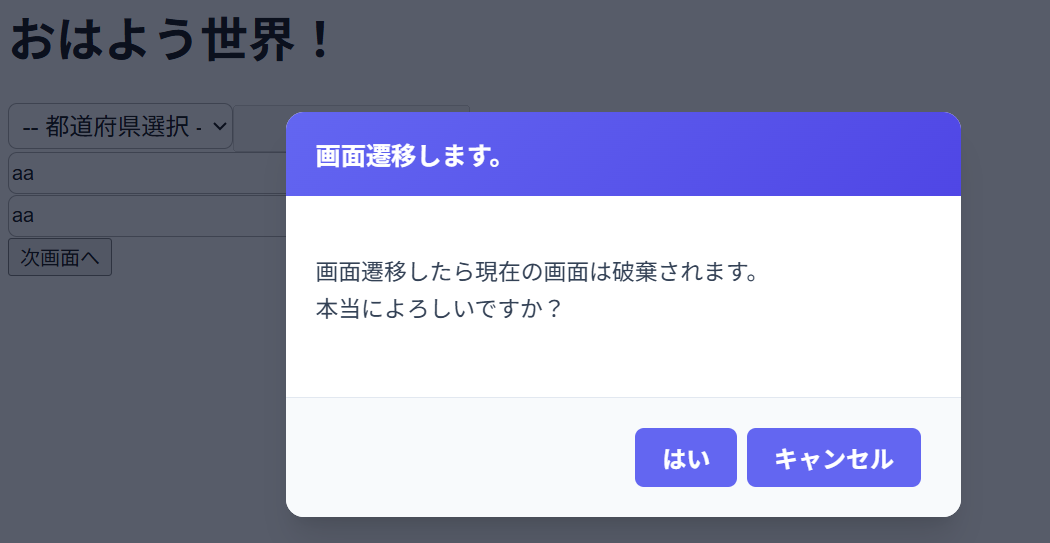
以下の様にダイアログボックスが開いたでしょうか?
コンボメニューを変更したらダイアログボックスを表示する
例えばメニューを切り替えたことによって、画面のフォーム内容が変わる等です。
この場合もユーザーにアラートが欲しい所ですよね。 それでは『DialogDto.java』にプルダウン制御用のプロパティを追加してみましょう。
// 対象コンボ名
private String dialogComboTargetName = "";
// 対象コンボ前回値
private Map<String, String> dialogComboTargetVal = new HashMap<>();
// 「はい」押下時の発火させるID属性名
private String dialogComboId = "";
// インスタンス内容クリア
public void clear() {
dialogJson = "{}";
dialogOpen = false;
dialogAct = "";
dialogTitle = "確認ダイアログ";
dialogBody = "選択してください。";
dialogWidth = "400";
dialogHeight = "300";
dialogComboTargetName = "";
dialogComboId = "";
}
ダイアログボックスで『キャンセル』を選んだ場合、プルダウンメニューの値を戻す必要がある所です。 そのため『dialogComboTargetVal』を定義しています。 またダイアログボックス『はい』押下時に発火させたい隠しボタンを変更する場合、『dialogComboId 』にID属性名を登録します。
これは、今回のサンプルの様に『ビーンバリデーション』を無視したい場合に有効です。 更に『ボタン』『プルダウン』情報が混在するため『クリア』メソッドも追加しました。 次にビュー側である『sample.xhtml』を編集します。
<h:selectOneMenu id="my_pref" value="#{sampleBean.dto.pref}" styleClass="parts_combo" style="width:150px;">
<f:ajax execute="@this" render="msg jyusyo dialogCtrl" listener="#{sampleBean.changeCombo}" onevent="handleDialogAjaxEvent" resetValues="true" />
<f:selectItem itemValue=" " itemLabel="-- 都道府県選択 --" />
<f:selectItem itemValue="1" itemLabel="東京都" />
<f:selectItem itemValue="2" itemLabel="埼玉県" />
<f:selectItem itemValue="3" itemLabel="神奈川県" />
<f:selectItem itemValue="4" itemLabel="千葉県" />
</h:selectOneMenu>
~ 省略 ~
<!-- ダイアログ「はい」押下時の発火ボタン(コンボ用) -->
<h:commandButton id="dialogActionCombo" value="" action="#{sampleBean.dialogReturn()}" style="display:none;" >
<f:ajax execute="my_pref" render="my_pref" />
</h:commandButton>
『ID = dialogActionCombo』は任意の属性名となり、JSON文字列で管理されます。
private Map<String, String> combMap = new HashMap<>();
~ 省略 ~
@Override
protected void initialize() {
dto = new SampleDto();
dialog = new DialogDto();
// 前回のコンボ値を初期値として設定(DB値なら抽出する)
combMap.put("my_pref", " ");
dialog.setDialogComboTargetVal(combMap);
}
~ 省略 ~
// ダイアログボックスを開いて良いか確認
public void dialogCheck(String act) {
dialog.clear();
/switch (act) {
~ 省略 ~
// ダイアログ『はい』押下
public String dialogReturn() {
switch (dialog.getDialogAct()) {
case "next":
return next();
case "pref":
// 前回値を更新する
combMap.put("my_pref", dto.getPref());
// ~ プルダウン変更用処理を実施する ~
return null;
default:
return null;
}
}
~ 省略 ~
public void changeCombo() {
// ダイアログボックスの対象となるコンボIDを設定
dialog.clear();
dialog.setDialogComboTargetName("my_pref");
dialog.setDialogOpen(true);
dialog.setDialogAct("pref");
dialog.setDialogComboId("dialogActionCombo");
dialog.setDialogJson(dialog.setDialogInfo());
switch(dto.getPref()) {
case "1":
dto.setJyusyo("東京都渋谷区");
break;
case "2":
dto.setJyusyo("埼玉県川口市");
break;
case "3":
dto.setJyusyo("神奈川県横浜市");
break;
case "4":
dto.setJyusyo("千葉県柏市");
break;
default:
dto.setJyusyo("");
}
}
本来はDB値だったりしますが、ここでは単純にブランクとしています。 また『Map』型にしている理由は、複数のプルダウンメニューに対応する為です。
こうする事で、それぞれの値を格納する事が可能となります。 じゃぁ『dialogComboTargetName』は文字列型で良いのって突っ込まれそうですが問題ありません。
何故ならダイアログボックスの対象となるプルダウンメニューは、例え複数あってもダイアログボックスを開きながら他のダイアログボックスは開けないため、常に特定の名前を格納すれば良いのです。 その他のロジックは基本的に『ボタン』の場合と同じです。
② ダイアログボックス『はい』の場合は、ボタン同様メソッド『dialogReturn』が処理される。
③ ダイアログボックス『キャンセル』の場合は、JSON文字列に仕込んだプルダウン前回値に変更する。
//ダイアログボックスを開く
function openDialog(dialogJson) {
$("#customDialogBody").html(dialogJson.dialogBody);
$("#customDialog").dialog({
autoOpen: false,
modal: true,
draggable: false,
resizable: false,
title: dialogJson.dialogTitle,
open: function(event, ui) {
$(this).parent().find(".ui-dialog-titlebar-close").hide();
},
buttons: {
"はい": function() {
$(this).dialog("close");
// 「はい」で発火させるボタン
let dialogButton;
// コンボの場合
if ("dialogComboId" in dialogJson && dialogJson.dialogComboId != "") {
let combo_id = dialogJson.dialogComboId;
dialogButton = getDialogElement(combo_id);
} else {
dialogButton = getDialogElement("dialogAction");
}
getDialogElement('dialogCtrl').val("{}");
// ダイアログボックスインスタンスクリア
$("#customDialog").dialog("destroy");
dialogButton.click();
},
"キャンセル": function() {
$(this).dialog("close");
// コンボの場合
if ("dialogComboTargetName" in dialogJson) {
let combo_name = dialogJson.dialogComboTargetName;
let combo_val = dialogJson.dialogComboTargetVal[combo_name];
if (combo_name.trim() != "") {
let combo_ele = getDialogElement(combo_name);
combo_ele.val(combo_val);
}
}
getDialogElement('dialogCtrl').val("{}");
// ダイアログボックスインスタンスクリア
$("#customDialog").dialog("destroy");
},
}
});
$("#customDialog").dialog("option", "width", dialogJson.dialogWidth);
$("#customDialog").dialog("option", "height", dialogJson.dialogHeight);
$("#customDialog").dialog("open");
}
簡易的に『sample.xhtml』側に移動して挙動を確認しようとするとエラーとなります。
理由は『&&』で、『.js』では問題ありませんが『.xhtml』で記述する際は『&&』と記述します。 『キャンセル』処理では、プルダウンの値を前回値に戻しています。
『はい』処理では、最終的に発火させる『隠しボタン』を動的に切り替えています。 また、両共通処理として『ダイアログボックスインスタンスの廃棄』処理を入れています。
これは、複数種のダイアログボックスが定義されている場合のキャッシュをクリアする意味があります。
何をするにも思いますがビーンバリデーションがあると、すんなり実装できそうな機能も複雑になりますよね。
でも便利なバリデーションでもあります。 『Jakartaフレームワーク』は奥が深いですね。。 それでは、最後までお付き合いくださりありがとうございました。



※『トークンタグの自動付与(ヘルパー)』参照
『不正遷移対策』をしている場合、AJAX処理の設定内容次第では『不正遷移扱い』となってしまいます。本コードは正常にトークンチェックを通過するための設定となっています。 従って本サイトによる『不正遷移対策』を実装していない場合は、特に記述の必要はありません。